Get started
Send your first auto-reply
Three nodes are enough: a comment trigger, a condition that matches the comment text, and a send-DM node carrying your message. You choose the connected page in the canvas header, drop the three tiles onto the canvas, connect them in order, click Save campaign, and switch the campaign on. A comment on that page then starts a run, and the person who commented gets your direct message.
What do you need before you build it?
Section titled “What do you need before you build it?”- A connected Facebook page or Instagram business account — connect a page first, because a campaign is bound to exactly one page and cannot be activated without one.
- An active subscription. Creating a campaign checks for one and refuses if it is missing or expired.
- Room inside your plan’s campaign limit, which is also checked at creation.
What does the shortest working campaign look like?
Section titled “What does the shortest working campaign look like?”A trigger connects only to a condition, and a condition cannot connect to another condition, so this shape is the shortest one the canvas permits between a comment and a DM.
| Node | What it does | What you set on it |
|---|---|---|
Comment trigger (trigger_comment) | Starts the campaign when someone comments on the page | Whether it listens to every post on the page or to one specific post you pick |
Condition (condition) | Matches the text of the comment and routes the run down Match or No Match | The match type: match anything, contains, exact, or a keyword list |
Send DM (send_dm) | Delivers the direct message | The message type — text for a first campaign — and the message itself |
Leaving the condition’s No Match output unconnected is allowed. Activation requires an incoming connection on every node except the trigger; it never requires that every output is used.
How do I build the three nodes?
Section titled “How do I build the three nodes?”- Open Campaigns → + New automation. An empty canvas opens with Save campaign as the only enabled action.
- Choose your connected page in the canvas header. AFP derives the platform from that page: a standalone Instagram account makes an Instagram campaign, a Facebook page makes a Facebook one.
- Drag the comment trigger from the palette on the left onto the canvas.
- Drag from the trigger’s output handle and drop on empty canvas. The palette reopens showing only the node types that may follow that handle, and your next click both creates the node and connects it. Clicking the + placeholder on the handle does the same thing.
- Add the condition this way, then select it and set its match type. The settings panel opens on the right whenever a node is selected.
- From the condition’s Match output, add the send-DM node. Select it, choose the text message type, and write the message the commenter receives.
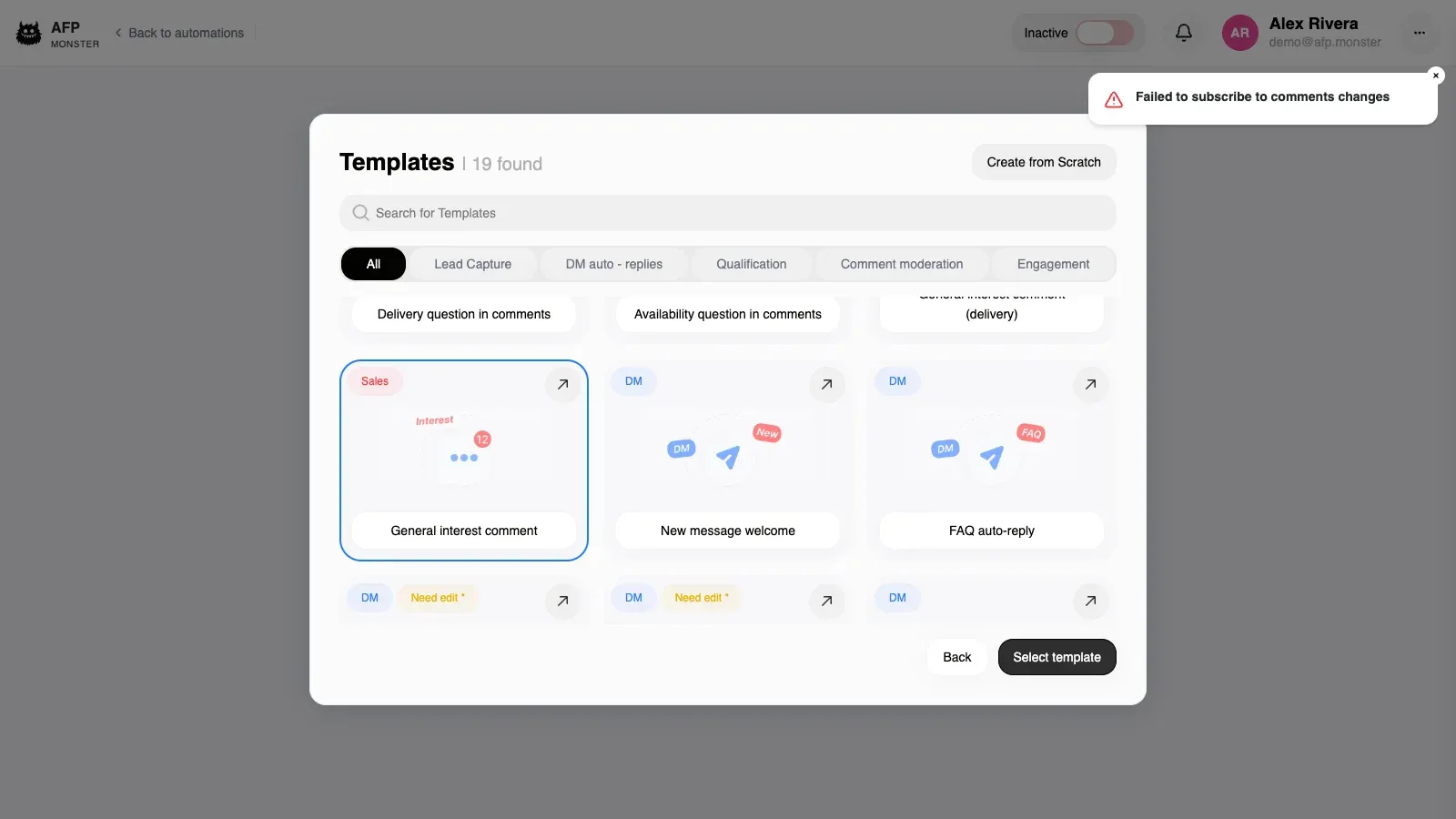
Everything in steps 3 to 6 lives in your browser. The canvas stays in an unsaved state and AFP stores nothing until you save the graph.
How do I match a keyword list instead of one phrase?
Section titled “How do I match a keyword list instead of one phrase?”Create the list first, then point the condition at it — the condition’s dropdown offers lists that already exist.
- Open the keyword-list dialog and start a New keyword list.
- Give the list a name and enter its keywords. AFP trims each keyword and drops blanks and duplicates before saving.
- Save the list. A name already used by one of your lists is refused, and so is a list with no keywords.
- Back on the canvas, select the condition, set its match type to the keyword-list option, and pick your list.
- Optionally reverse the match, so the run takes Match when the comment contains none of the keywords.
The list is stored the moment you save it in the dialog. The link between the condition and the list is stored when you save the graph, so a keyword list you pick and never save is not attached to anything. Keyword lists covers renaming, editing, and deleting them.
How do I save the graph and activate the campaign?
Section titled “How do I save the graph and activate the campaign?”- Click Save campaign. Saving writes a new version of the graph, and the version you saved last is the one AFP matches incoming comments against.
- Flip the Active toggle in the canvas header. In the canvas the toggle is local until you save, and switching on a campaign that was off asks you to confirm first.
- Save again if you changed anything else. Runs already under way stay on the version they started on, so later edits never rewrite a run in flight.
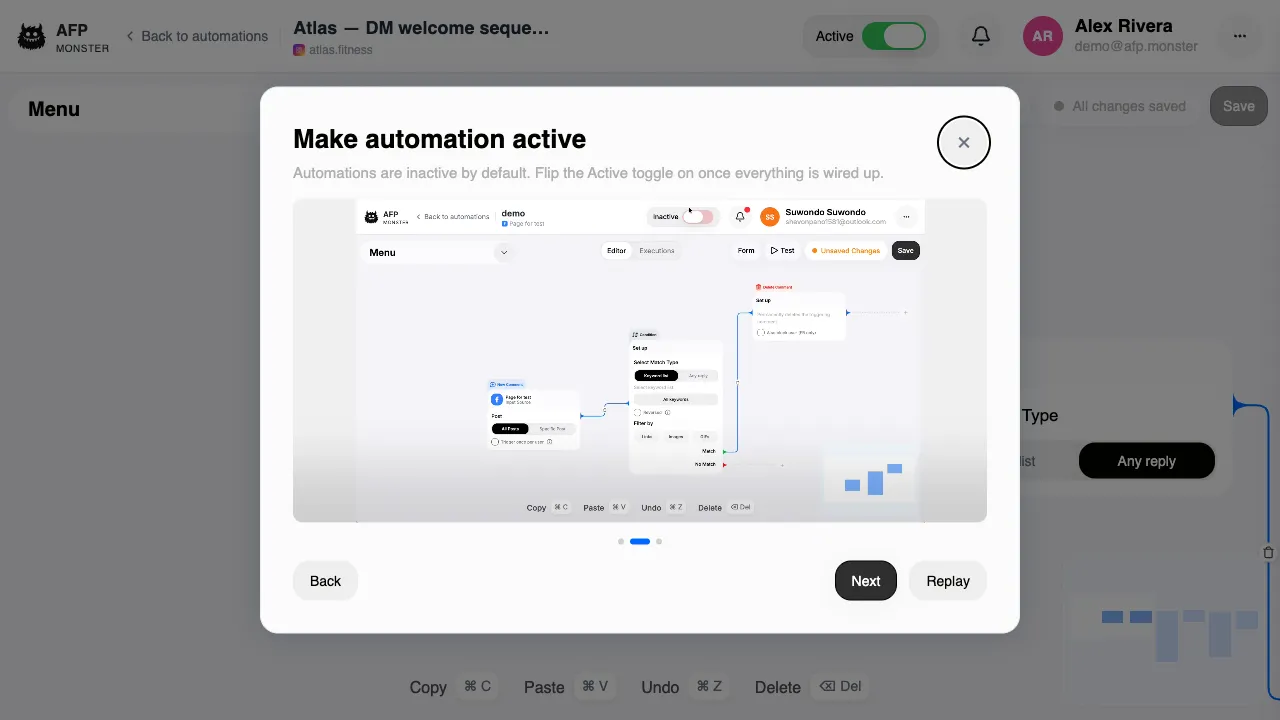
Activating from the canvas validates the graph before anything is sent: at least one trigger node, an incoming connection on every other node, and no node holding a configuration error. A graph that fails shows you the list of errors and is not sent to AFP.
The toggle on the campaign list applies immediately and does not validate the graph. A campaign switched on there with no saved graph version containing a trigger matches nothing, even though the toggle reads as on.
How do I know it worked?
Section titled “How do I know it worked?”The canvas leaves its unsaved state after a successful save, and the campaign header shows the Active toggle on. Those two are means, not proof. The proof is a comment.
- Ask someone else, or use a second account, to comment on a post on that page. Comment on the specific post if you scoped the trigger to one.
- Match the comment text to your condition: include one of the keywords, or the exact phrase you typed.
- Watch that person’s inbox on Facebook or Instagram. Your DM arrives there.
Three things have to hold for a comment to reach the campaign, and all three are visible in the canvas.
| Condition | How to check it |
|---|---|
| The campaign is active | The Active toggle in the canvas header is on |
| The saved graph contains the trigger | The canvas shows no unsaved changes — a trigger you added but never saved is not part of the version that runs |
| The campaign is bound to the connected page | The page named in the canvas header is the page being commented on |
Creating the campaign also subscribes that page to its events, so there is no separate subscription step to perform.
Checking a graph without waiting for a real comment is covered in test and debug campaigns.
Why did saving or activating fail?
Section titled “Why did saving or activating fail?”| What you see | What it means |
|---|---|
| An error about a missing or expired subscription | Campaign creation checks the subscription first; nothing is stored |
| An error about exceeding the number of campaigns in your plan | You are at your plan’s campaign limit — delete a campaign or move to a larger plan |
| A message that the campaign cannot be activated without a page | No page is selected in the canvas header; AFP is never called |
| A list of graph errors instead of a save | Graph validation failed: a missing trigger, or a node with no incoming connection |
| A disabled Save button reading Fix errors to save | A node’s settings are incomplete — select the flagged node and finish its form |
| An empty canvas when you reopen a campaign you just created | The campaign was created but its first graph save did not land; rebuild the three nodes and save again |
A campaign with an empty canvas routes nothing, whatever its Active toggle says, so treat the last row as a save that has to be repeated rather than a broken campaign.