Team
Work as a team
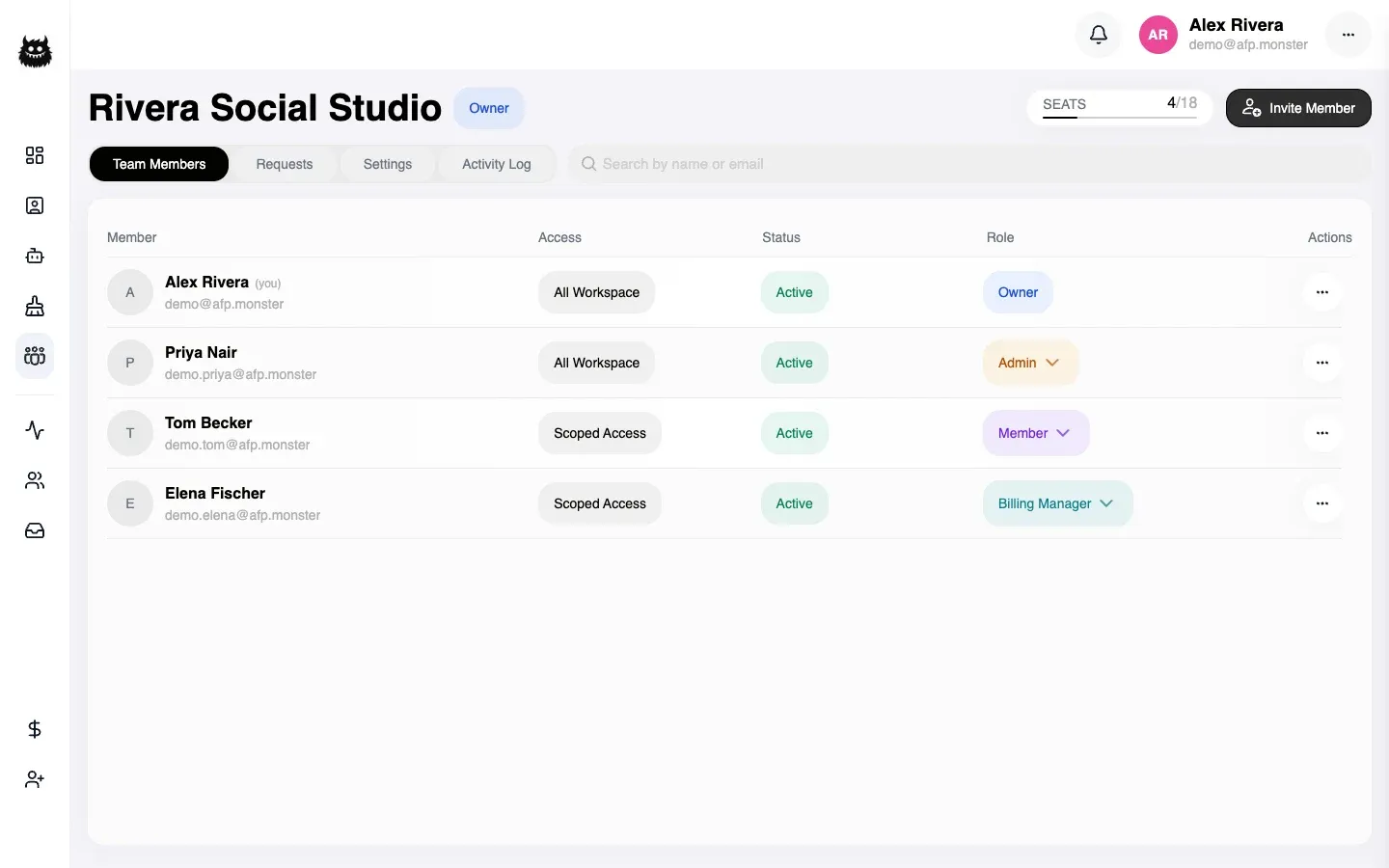
A team is one shared workspace that several people sign in to with their own accounts. You create it on a team plan, name it, and invite people by email into one of three roles. Everything you and they bring — Facebook profiles, pages, campaigns, contacts — becomes visible to the team, narrowed per person by their role and by the pages you assign them. One account belongs to at most one team.
What you need first
Section titled “What you need first”- A team plan. Individual plans cannot own a team. See Plans and billing for the plan list and Payment methods for how to pay.
- An account that is not already in someone else’s team, and does not already own one.
- The email address of each person you want to invite. They sign in with that address, so it has to be the one on their AFP account.
How do I create a team?
Section titled “How do I create a team?”- Open My Team.
- Enter a name for the team.
- Confirm. You become the owner, with every permission and access to the whole workspace.
Creating a team moves your existing pages, files, and reply templates into it. They stay yours; they also become visible to the people you invite, subject to the access you assign them.
The team is attached to the subscription you already hold, so there is no second payment. If your plan is not a team plan the request is refused, and the plan list is where you change that.
How do I invite someone?
Section titled “How do I invite someone?”- Open My Team → Invite Member.
- Enter the person’s email address.
- Pick a role: Admin, Member, or Billing Manager. You cannot invite someone as Owner — ownership moves separately.
- Send the invitation.
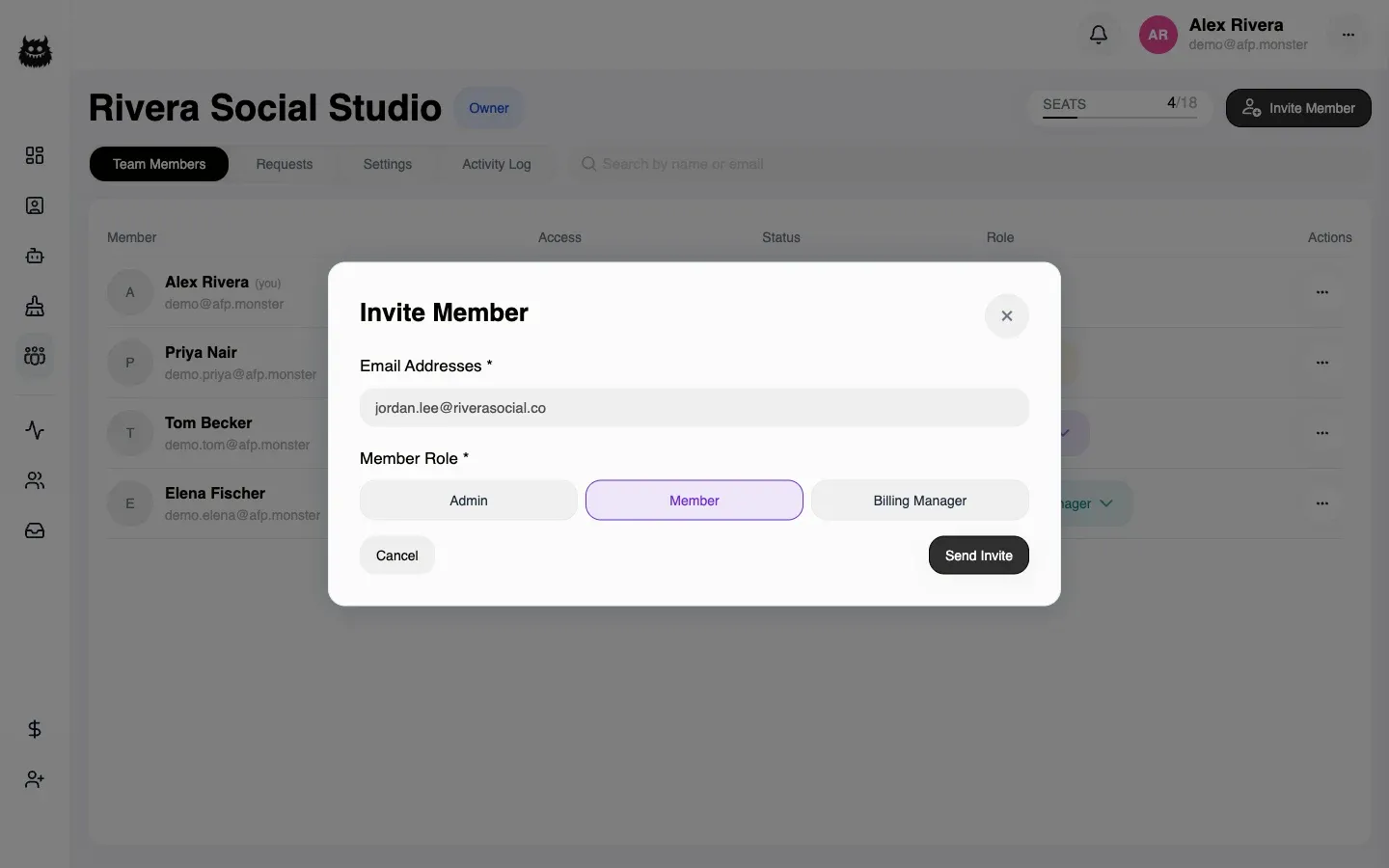
The invitation arrives by email with a link back into AFP. Pending invitations sit under Requests, where you can resend or revoke each one. Resending issues a fresh link and stops the old one working. Revoking releases the seat straight away.
Team roles and permissions sets out exactly what each role can do.
What happens when someone accepts?
Section titled “What happens when someone accepts?”Accepting is not a small step for the person accepting, and AFP makes them confirm it explicitly.
| What changes for them | Detail |
|---|---|
| Their own subscription stops | An active subscription on their own account is deactivated. It is not refunded. |
| Their pages join the team | Pages and profiles under their account become part of the workspace. |
| Their data joins the team | Keyword lists, contacts, tags, and templates they own move into the team’s scope. |
| Their access narrows | They see the workspace through the role and page assignments you gave them. |
The invitation only works for the account whose email matches it. Someone signed in as a different account gets a refusal rather than a silent mismatch.
A person can also decline from Requests, which releases the seat.
How many people can I have?
Section titled “How many people can I have?”Your seat count is people already in the team plus invitations still waiting to be answered. That is why the seat meter can read higher than the number of faces in the members table.
When the team is at its cap, an invitation is refused and the message names the count and the limit. A seat frees up when an invitation is revoked, declined, or expires, and when a member is removed or leaves. To raise the cap instead, buy seat add-ons — see Buy extra seats, pages, and profiles.
Seats are also re-checked at the moment someone accepts, so an invitation sent while a seat was free can still be refused if the seat went in the meantime.
What happens when someone leaves?
Section titled “What happens when someone leaves?”Whether they leave on their own or you remove them, the result is the same: everything they brought stays with the team. Their Facebook profiles, their pages, and the keyword lists, contacts, tags, and templates they created are re-assigned to the team owner.
They keep no copy. To use one of those Facebook profiles or pages again on their own account, they sign in through Facebook again, which re-attaches it to whichever account authenticates. For a dedicated Instagram account there is a waiting period after the leave before it can be reclaimed.
The owner cannot leave. An owner who wants out either transfers ownership first or dissolves the team.
How do I hand the team to someone else?
Section titled “How do I hand the team to someone else?”- Open My Team → Settings.
- Under Team Owner, choose Change the owner.
- Pick a current member. Someone outside the team cannot be nominated.
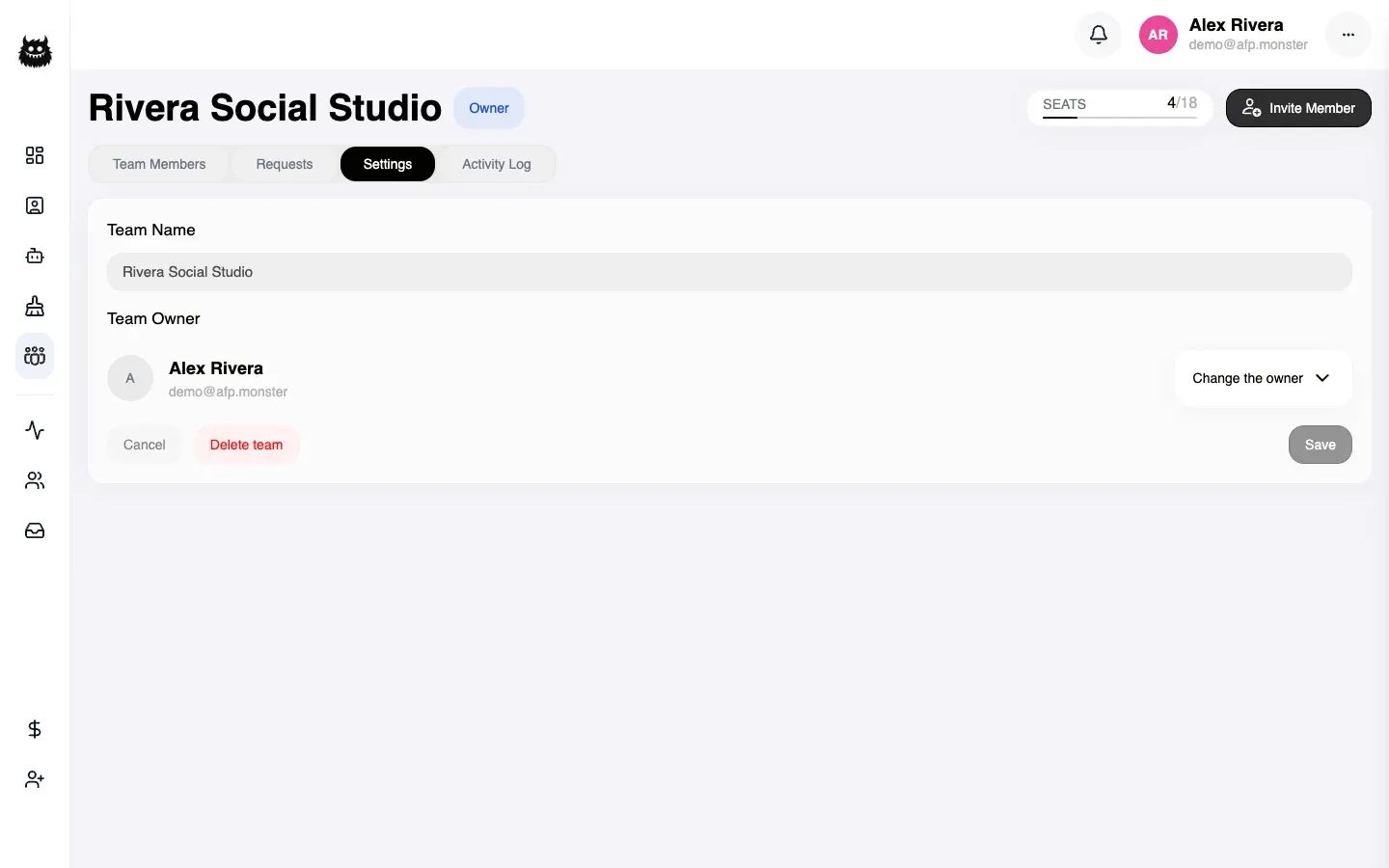
The new owner gets every permission, including billing, and the team’s subscription moves onto their account. You stay in the team as an Admin with access to the whole workspace, but you no longer hold billing.
How do I dissolve a team?
Section titled “How do I dissolve a team?”My Team → Settings → Delete team. Only the owner can do it.
Every membership ends, every pending invitation is revoked, and the subscription detaches from the team and returns to the owner alone. Dissolving does not re-assign members’ pages to you — each person’s pages and data stay with whichever account already held them, which is the opposite of what happens when a single member leaves.
Why is it not working?
Section titled “Why is it not working?”| Symptom | Cause | Fix |
|---|---|---|
| Invite Member refuses the address | The person already belongs to another team, or owns one | They leave or dissolve their own team first, then you invite again |
| A second invitation replaced the first | Inviting an address that already has an open invitation refreshes it in place | Expected — the older link stops working, so send the newest one |
| Accepting fails with a mismatch | They are signed in as a different account from the invited address | They sign out and sign in with the invited address |
| You cannot create a team at all | Your plan is an individual plan | Change to a team plan on the plan list |
| Someone cannot see a page you can see | Their access is scoped to a smaller set | Assign them the page — see Limit a teammate to certain pages |
| The owner cannot leave | Owners never leave | Transfer ownership, or dissolve the team |
Related
Section titled “Related”- Limit a teammate to certain pages — narrowing what one person can reach.
- Team roles and permissions — the full matrix of what each role can do.
- See what your team changed — the record of every change anyone made.
- Buy extra seats, pages, and profiles — raising the seat cap without changing plan.
- Manage profiles under one account — how one account holds several Facebook profiles.