Contacts
Segment contacts with tags
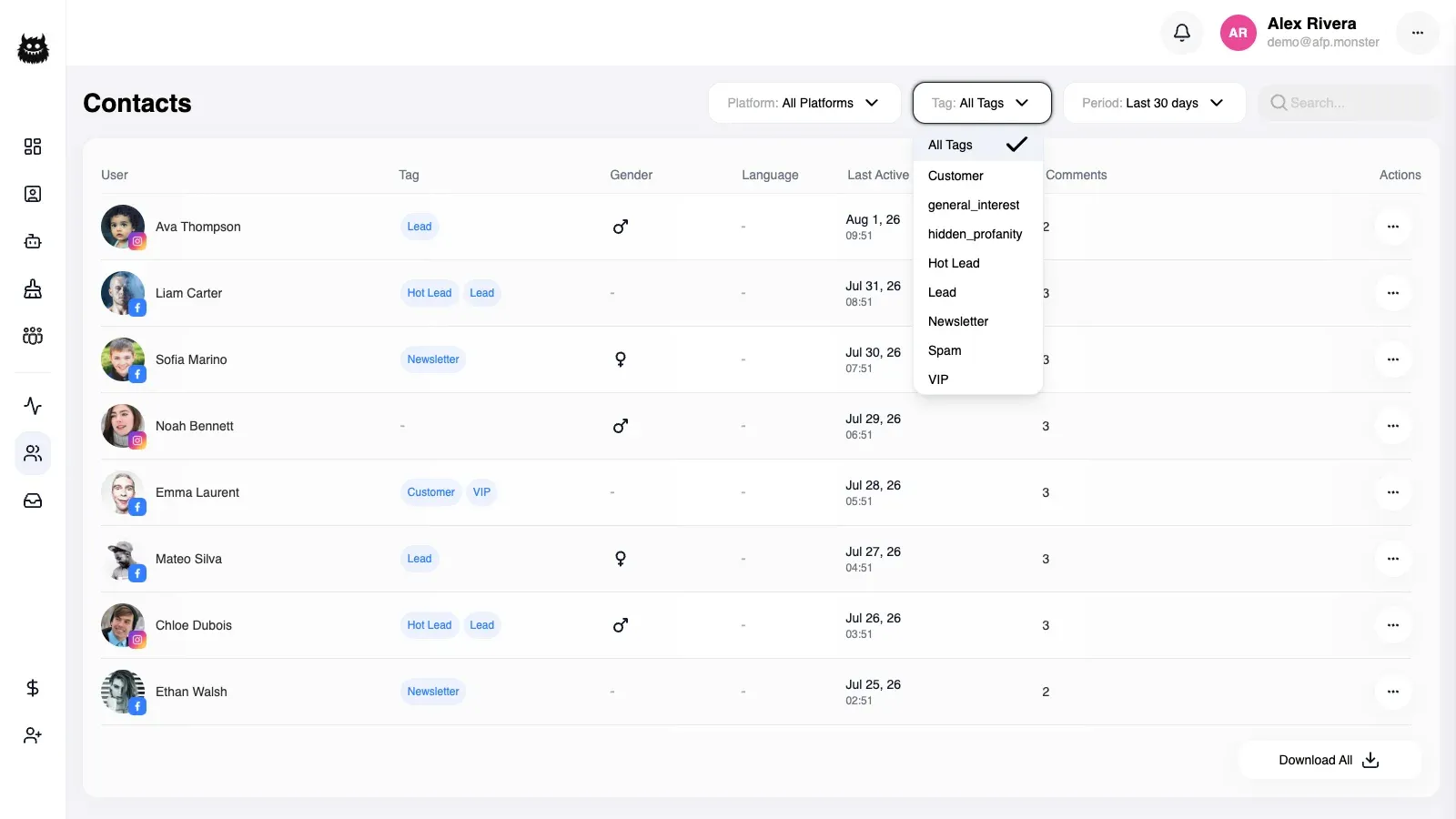
A tag is a short label attached to a contact — a name of up to 50 characters and nothing else. Tags arrive two ways: you pick them by hand on a contact, or an Add tag or Remove tag node applies them while a campaign runs. Once a contact carries a tag, you can filter the contact list by that tag, which is what makes tags worth maintaining.
What you need first
Section titled “What you need first”- A contact to tag. Contacts appear on their own the first time someone interacts with a connected page — see Work with contacts.
- For automatic tagging, a campaign open on the canvas with a trigger and a condition already connected. See Build a campaign on the canvas.
How do I create a tag?
Section titled “How do I create a tag?”Every tag picker in AFP can also create one, so you never leave what you are doing to add a label. The picker appears on a contact, in the inbox beside a conversation, and in the settings panel of an Add tag or Remove tag node.
- Open the tag picker on a contact, on an inbox conversation, or on an Add tag node.
- Type the name of the new tag.
- Confirm. The tag is saved and appears in every tag picker immediately, sorted into the list by name.
Two rules govern the name, and breaking either one refuses the save rather than storing something odd.
| What you set | Rule | If you break it |
|---|---|---|
| Tag name | Between 1 and 50 characters | An empty name, or one longer than 50 characters, is rejected before the tag is created |
| Tag name uniqueness | Unique within the ownership scope the tag is created in | The save is refused with a message that a tag with that name already exists |
A tag carries no other settings: no colour, no description, no rules of its own. It does nothing at all until something attaches it to a contact.
If your account sits under a master account, every picker lists the tags that master account owns alongside your personal tags. The duplicate-name check is narrower than the picker: a tag you create under a master account is checked against that master account’s tags only, so an older personal tag with the same name does not block it. That is how two entries with the same name can appear in one picker — they are two different tags, and applying one does not apply the other.
How do I rename a tag?
Section titled “How do I rename a tag?”- Open the tag-management dialog that lists your tags.
- Edit the tag’s name in place.
- Confirm the change.
Renaming is safe. Every contact that carried the tag still carries it, every node that applies it still applies it, and no campaign needs re-saving — the new name appears everywhere the old one did.
A rename to a name another tag in the same ownership scope already uses is refused, exactly as creating a duplicate is. Renaming a tag that is not yours to edit is refused too, and nothing about the tag changes.
How do I tag a contact by hand?
Section titled “How do I tag a contact by hand?”- Open Contacts and click the contact, or open that person’s conversation in the inbox.
- Open the tag picker.
- Select every tag the contact should carry.
- Save.
The picker submits the complete set of tags, not the change you made. What you save replaces what was there, so leave the existing selections you want to keep selected — clearing one and saving removes it from the contact. Selecting the same tag twice collapses to one, and the order you pick them in is not stored.
Every tag in the submission has to be one your account can see. A single unknown tag refuses the whole change, so nothing is saved in part.
How do I tag contacts automatically?
Section titled “How do I tag contacts automatically?”An Add tag node adds one or more tags to the contact behind the execution; a Remove tag node takes the listed tags away. Both sit anywhere after the condition, both carry a list of tags you pick from the same picker, and both have a single output the execution continues out of.
- Open the campaign on the canvas.
- Drag an Add tag node onto the canvas and connect it to the branch that should tag people — usually the Match output of your condition.
- Click the node and select the tags to apply.
- Click Save to write a new version of the campaign’s graph.
- Turn the campaign on with the Active toggle.
Adding is a merge: the tags already on the contact stay, the listed ones are added, and a tag the contact already carries is not duplicated. Removing subtracts only the tags listed on the node and leaves the rest of the contact’s tags alone.
A tag node never creates a contact. When the execution belongs to someone who has no contact record yet, the node changes nothing, records that it ran, and the execution carries on to the next node.
Where do tags show up?
Section titled “Where do tags show up?”| Surface | What tags do there |
|---|---|
| Contact card and contact list | Show the tags the contact carries; the card’s picker is where you edit them |
| Inbox | Show the tags of the person in the conversation, so you see the segment while replying |
| Contact list filter | Narrow the list to contacts carrying one chosen tag |
| Add tag and Remove tag node settings | Choose which tags the campaign applies |
Tag pickers list every tag at once, sorted by name, with no paging. They are built for tens of tags rather than thousands, so keep the set small enough to scan.
What happens to tagged contacts when I delete a tag?
Section titled “What happens to tagged contacts when I delete a tag?”Deleting is not safe, and AFP does not stop you. Deletion is never refused because a contact or a campaign uses the tag, there is no undo, and re-creating a tag with the same name produces a new tag rather than restoring the old assignments.
Two things happen when you delete a tag:
- The tag stops appearing on contacts that carried it. AFP shows only tags it can still find, so the label vanishes from the contact list, from the contact card, and from the inbox. Filtering contacts by it is no longer possible either, because the deleted tag is gone from the filter.
- Nodes keep pointing at what you deleted. An Add tag node that referenced the deleted tag still runs and still writes that reference onto the contact, where nothing can display it. Saving that contact’s tags by hand replaces the whole set and clears the leftover.
Why is a tag not appearing on a contact?
Section titled “Why is a tag not appearing on a contact?”| Symptom | Cause | Fix |
|---|---|---|
| A tag you did not touch is missing after saving the picker | The picker replaces the contact’s whole set of tags, so anything not selected at save time is removed | Re-open the picker, select every tag the contact should carry, and save |
| Saving the tag picker changes nothing | One tag in the submission is not visible to your account, and a single unknown tag refuses the whole change | Re-open the contact so the tag list reloads, then select and save again |
| An Add tag node ran but the contact has no new tag | The person has no contact record yet, so the node had nothing to write to | Confirm the contact exists in Contacts — see Work with contacts |
| A test execution shows the tag step but the contact is unchanged | Test executions record tag steps instead of applying them | Trigger the campaign with a real comment, then re-open the contact |
| Creating a tag is refused | The name is empty, longer than 50 characters, or already used by a tag in the same ownership scope | Shorten or change the name |
| A tag disappeared from every contact at once | The tag was deleted, and deletion does not ask about the contacts or campaigns using it | Create the tag again and re-apply it; the old assignments do not come back |
| Two identical names in the picker | One tag is personal and one belongs to the master account | Check which of the two your campaigns and filters use, and retire the other |
| Filtering contacts by a tag returns nothing | The tag filter combines with the date-range filter, which defaults to the last 30 days | Set the date range to All, then filter by the tag again |
Related
Section titled “Related”- Work with contacts — where the contacts you are tagging come from, and how to filter them by tag.
- Node types — the configuration each node accepts, including the tag nodes.
- Route comments to a DM — the campaign a tag node usually hangs off.
- Match comments with keyword lists — decide which people reach your tag node.