Your account
Get notified
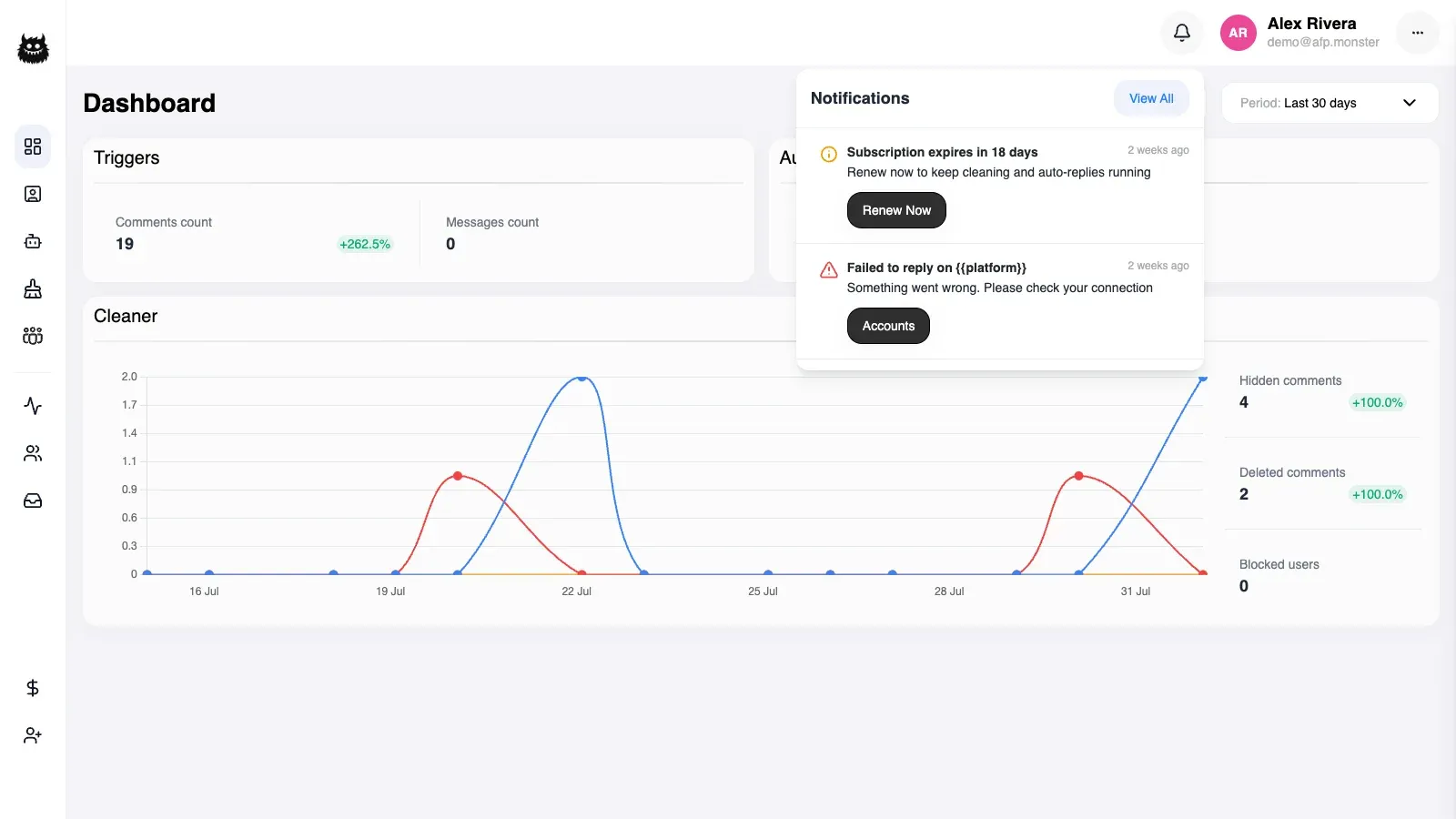
Every AFP notification appears in the app itself: the bell badges what arrived today, and the panel behind it lists your notifications newest first, 20 at a time. Settings sends the same alerts to a Telegram chat and to an email address as well — AFP hands you a link to its bot that stops working 15 minutes after you ask for it. If you are in a team, some alerts also reach the teammates who can act on them.
What you need first
Section titled “What you need first”- An AFP account. The notification panel needs nothing turned on; it fills up as events raise notifications. See Create your account.
- A Telegram account, on the device where you will open the linking link, if you want alerts in chat as well.
Where do my notifications appear?
Section titled “Where do my notifications appear?”The panel behind the bell lists your notifications newest first and loads 20 at a time, paging back through older ones as you keep reading.
Each entry names the event that raised it and carries that event’s own details, so the panel is the record you check when you want to know what AFP did and what it could not do.
The badge on the bell counts only the notifications raised since the start of the current day, measured in UTC. Last night’s notification keeps its place in the panel while the badge ignores it, which makes the badge a “what happened today” count rather than an unread count.
Which of today’s notifications you have already looked at is remembered by the browser you read them in, not by your account. Opening AFP on a second device, or clearing that browser’s storage, shows the same notifications as unread again.
How do I get alerts in Telegram?
Section titled “How do I get alerts in Telegram?”AFP sends the same notifications to a Telegram chat. Connect it once and every later alert arrives there as well as in the app.
- Open Settings and find Telegram connect under Where should we send alerts?
- Ask for the link. AFP gives you a link to its bot, valid for 15 minutes.
- Open the link and send the message it has already prepared for you.
The bot confirms, and Settings shows Telegram as Active.

To stop them, click Disconnect beside Telegram in Settings. Your in-app notifications are untouched.
Where else can alerts go?
Section titled “Where else can alerts go?”Email, to an address you set yourself. Settings → Email for notifications takes the address and a Save. The address on your Facebook profile is never used as a fallback, so leaving this empty means no email.
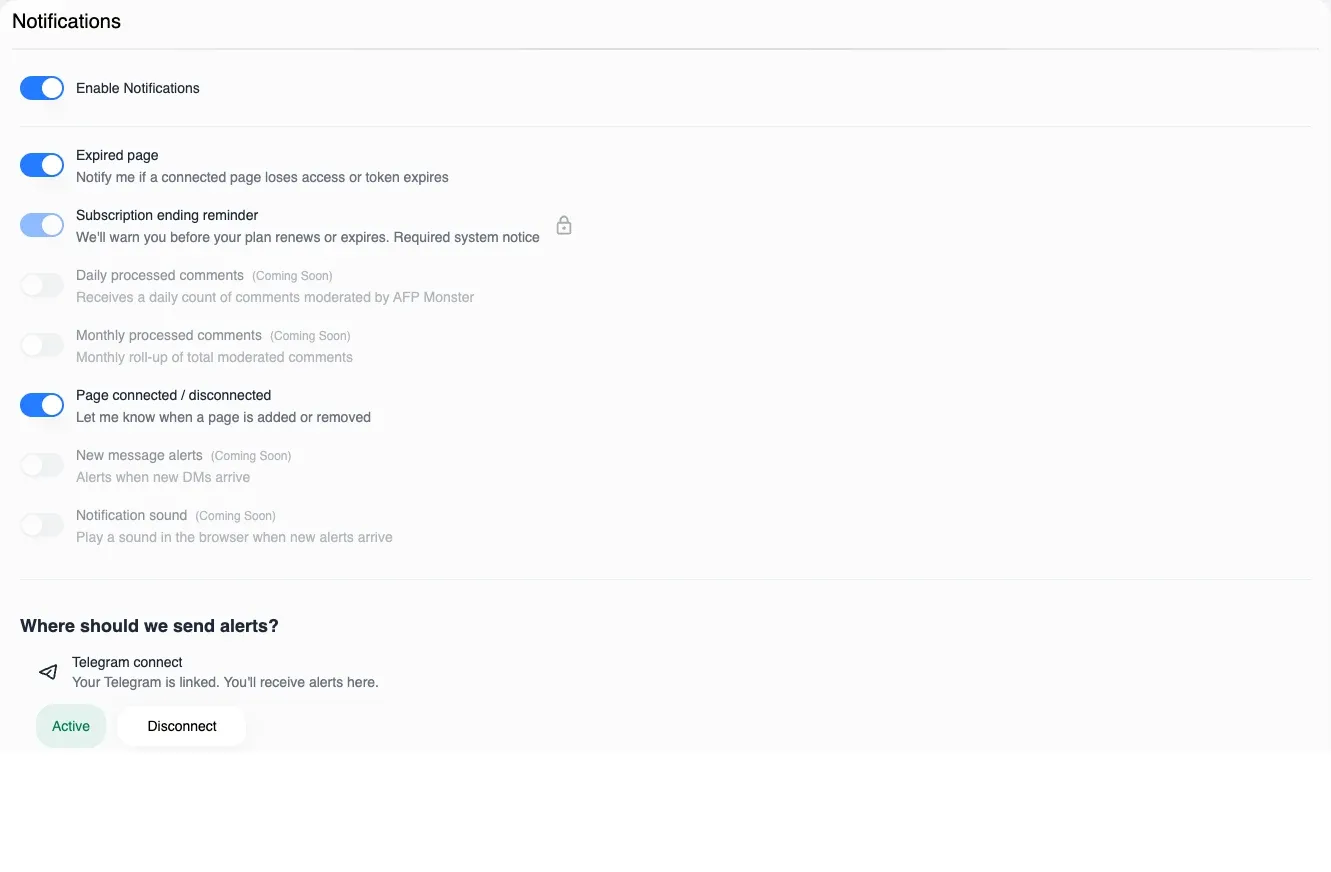
Above the destinations sits the list of what to send. Enable Notifications is the master switch for email and Telegram together; below it, individual toggles cover expired page access, subscription reminders, and page connections. Four further toggles are shown but marked Coming Soon and do nothing yet.
Turning everything off silences email and Telegram only. In-app notifications are always written.
Which events send a notification?
Section titled “Which events send a notification?”Notifications cover the things you would otherwise have to notice yourself: a reply AFP could not send, a change to a page’s connection or its access, and a subscription approaching its end. Notification catalogue lists every event, what each one carries, how often it repeats, and which channels it can reach.
| Channel | How it is turned on | How it is turned off |
|---|---|---|
| In app | Nothing to turn on — notifications appear in the panel as they are raised | Dismiss entries one at a time |
| Set a notification address in Settings | Clear the address, or turn the event off | |
| Telegram | Link a chat in Settings | Disconnect in Settings |
What happens when a page loses access?
Section titled “What happens when a page loses access?”AFP raises a warning naming the profile or page that stopped working, and pointing you at where to reconnect it. It only does this when the access is genuinely gone — a temporary failure or a rate limit raises nothing, so the warning means there is something to fix.
The warning stays as a single standing entry rather than repeating on every failed call.
When access starts working again, AFP removes that warning and replaces it with a confirmation. You do not have to remember whether you fixed it: an empty panel means nothing is broken.
Page permissions and tokens covers how to restore access.
Do my teammates get my notifications?
Section titled “Do my teammates get my notifications?”Some of them, chosen by who can act on the problem.
| Notification | Who else receives it |
|---|---|
| Subscription expiring | Everyone in the team who can see billing |
| Anything about a specific page | Everyone in the team with that page assigned to them |
| Everything else | Nobody — only you |
A teammate scoped to a different set of pages is not told about a page they cannot see. Each person receives it in their own language and subject to their own settings, so one person switching notifications off does not silence anybody else.
See Team roles and permissions for who can see billing, and Limit a teammate to certain pages for page assignments.
Where do product updates appear?
Section titled “Where do product updates appear?”The Updates page in the app lists AFP’s release notes, newest first, a page at a time. New notes appear there as they are published.
Release notes are not notifications. They live on their own page rather than in the notification panel.
Why am I not getting alerts?
Section titled “Why am I not getting alerts?”| Symptom | Cause | Fix |
|---|---|---|
| The badge is empty although the panel has entries | The badge counts only notifications raised since the start of the current day, in UTC | Open the panel — earlier notifications stay in the list |
| Notifications you have already read look unread again | What you have seen is stored by the browser you read it in, not by your account | Nothing to fix; reading them on that device settles the count again |
| The bot answers that the link expired | The link lasts 15 minutes | Ask for a new one in Settings and open it straight away |
| Telegram alerts stopped and nothing changed in AFP | The bot was blocked inside Telegram; AFP is not told | Unblock the bot, or Disconnect and connect again |
| Email alerts never arrive | No notification address is set — your Facebook address is not used as a fallback | Set the address in Settings and Save |
| A toggle in Settings will not move | It is one of the toggles marked Coming Soon, or the required subscription notice | Nothing to fix — those are not wired to anything you can change |
| A teammate did not get an alert you got | Fan-out is limited to the people who can act on it | Check that the page is assigned to them, or that they can see billing |
| An event you expected produced no notification at all | Not every event raises one | Check Notification catalogue for the events that do |
| A notification you meant to keep is gone | Dismissing deletes a notification outright | Nothing restores it — the catalogue covers how long notifications are kept |
Related
Section titled “Related”- Notification catalogue — every event that notifies you, the channels it reaches, and how long notifications are kept.
- Page permissions and tokens — what to do when a notification reports a page’s access has stopped working.
- Manage connected pages — connecting and disconnecting the pages these notifications track.
- Get help — open a ticket when a notification points at something you cannot fix yourself.