Team
Limit a teammate to certain pages
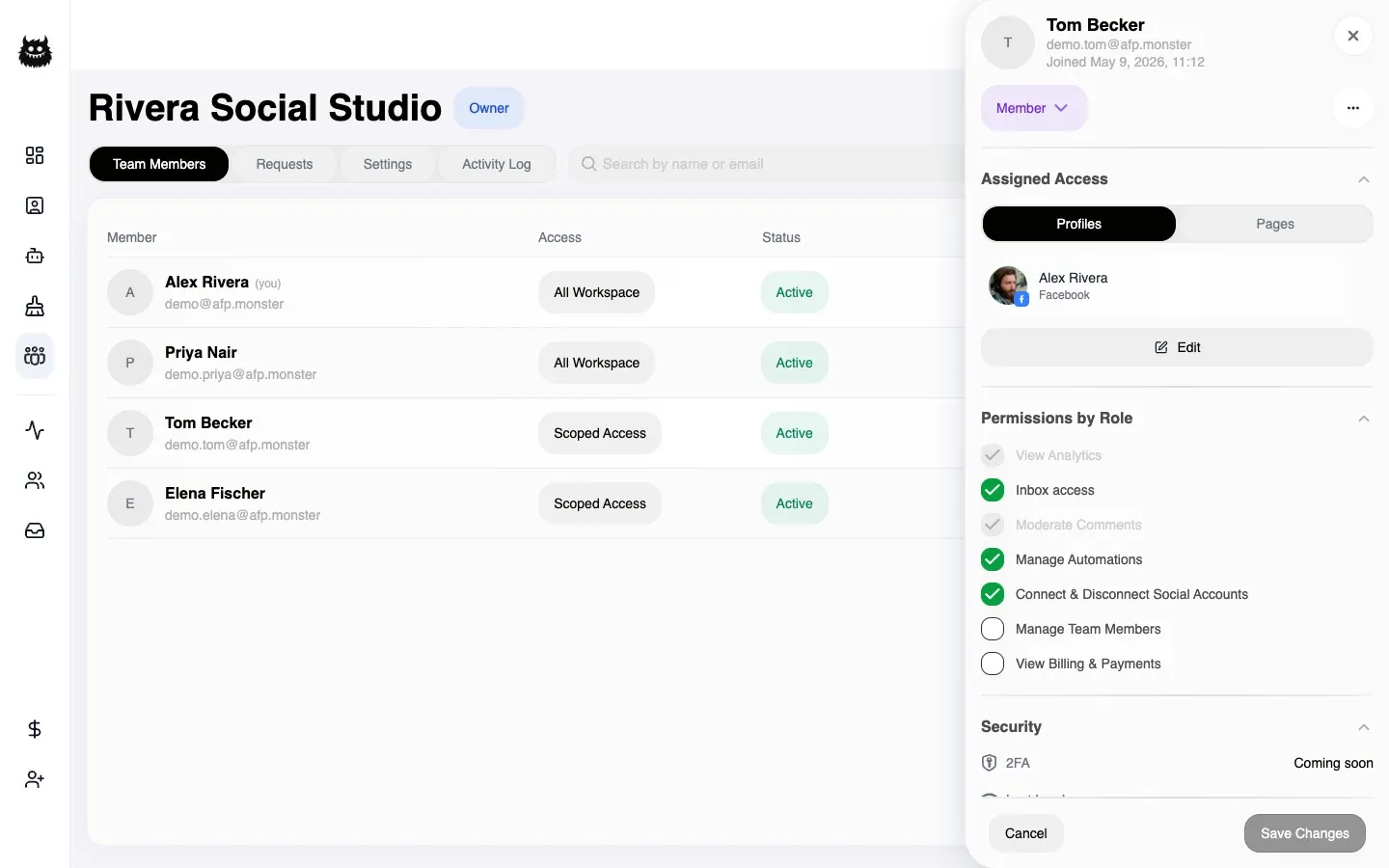
Two separate settings decide what a team member can touch, and both have to allow an action before it happens. Their role decides what kinds of thing they may do — edit automations, read the inbox, invite people. Their access decides which pages and accounts they may do it to. Owners and Admins always have the whole workspace; Members and Billing Managers start scoped to nothing until you assign them something.
What you need first
Section titled “What you need first”- A team you own or administer. See Work as a team.
- At least one member who is not an Owner or Admin. Full-workspace roles have nothing to narrow.
How do I assign pages to a member?
Section titled “How do I assign pages to a member?”- Open My Team → Team Members.
- Click the member’s row to open their drawer.
- Under Assigned Access, choose Edit.
- Step one is Accounts List — tick the Facebook or Instagram accounts they may work with.
- Step two is Page List — tick the individual pages.
- Save.
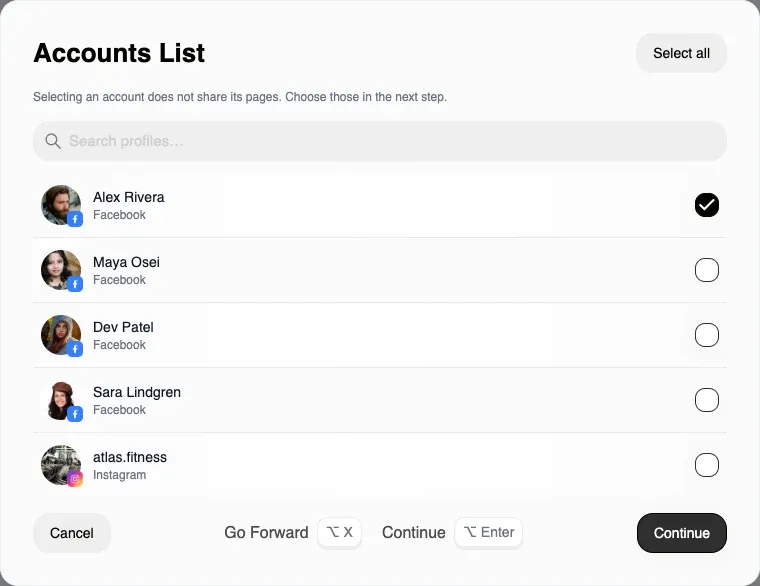
Assigning access switches the member to scoped access if they were not scoped already. What you tick replaces their previous set rather than adding to it, so a save with nothing ticked leaves them with nothing.
You can only assign pages that belong to the team. A page held by an account outside the team is refused.
Does assigning an account also assign its pages?
Section titled “Does assigning an account also assign its pages?”No, and this is the setting people get wrong most often. The picker says so on the first step: selecting an account does not share its pages.
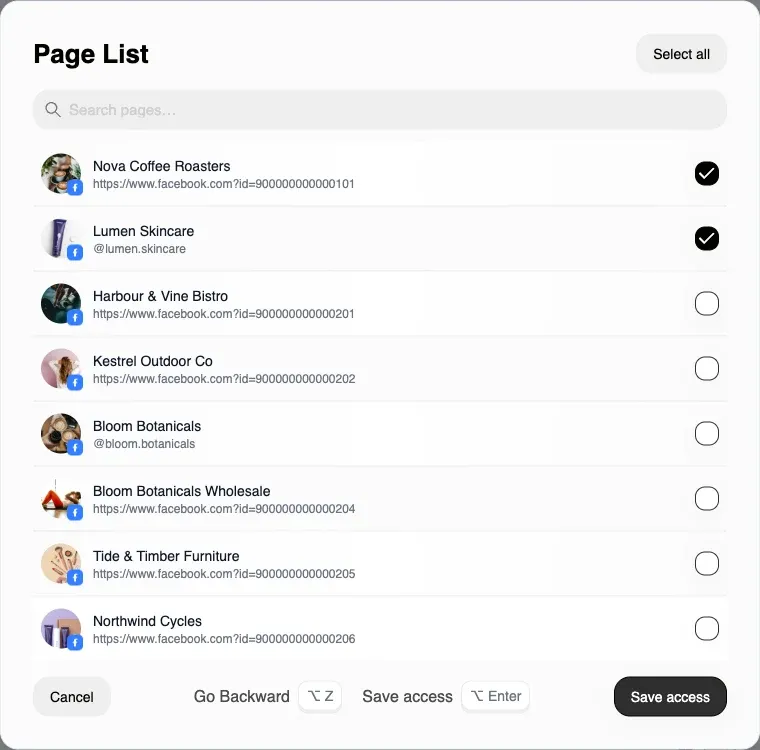
Account access and page access are two separate grants:
| Grant | What it lets them do |
|---|---|
| Account | Work with that Facebook or Instagram account itself |
| Page | Act on that page — its campaigns, its comments, its inbox |
A member with an account assigned but none of its pages sees the account and can act on nothing under it. Assign the pages in step two as well.
A dedicated Instagram account — one connected without Facebook — has no parent account, so it is only ever reachable through a page assignment.
How do I change what kind of thing a member can do?
Section titled “How do I change what kind of thing a member can do?”The member drawer lists the permissions their role carries, as switches. Turn one off to take it away from that one person, or on to give it to them, without changing anybody else.
| Switch | What it covers |
|---|---|
| View Analytics | Reading the dashboard figures. Fixed by role; not adjustable |
| Inbox access | Replying from the inbox |
| Moderate Comments | Hiding, deleting, and replying on comments. Fixed by role; not adjustable |
| Manage Automations | Creating, editing, and deleting campaigns |
| Connect & Disconnect Social Accounts | Adding and removing Facebook and Instagram accounts |
| Manage Team Members | Inviting people and managing invitations |
| View Billing & Payments | Plans, payment methods, and invoices |
Two of them are shown for information only and cannot be switched: every role that has them, has them.
A switch never widens access. A member with Manage Automations on still cannot edit a campaign on a page outside their assigned set.
What happens if I change someone’s role?
Section titled “What happens if I change someone’s role?”Roles carry their own access rule, so a role change can move access with it.
| Change | Effect on access |
|---|---|
| Member or Billing Manager → Admin | They get the whole workspace. Their page assignments stop applying |
| Admin → Member | They go back to scoped access, with whatever assignments their membership still holds |
| Any role → Billing Manager | Their access mode is left as it was, and they lose everything except billing |
Promoting to Admin is therefore a bigger step than it looks: it removes the boundary, it does not just add permissions.
Owners and Admins may change any role except the owner’s. Members and Billing Managers cannot change anyone’s role, including their own.
What does a teammate see for a page they cannot reach?
Section titled “What does a teammate see for a page they cannot reach?”The page, marked NO ACCESS, with an explanation telling them to ask an admin.
Facebook lists every page a profile administers, so a scoped member sees pages that other people in the team linked. Rather than hide those rows, AFP shows them as read-only: the reconnect control is disabled and a note reads “This account is managed by another team member. Ask an admin to give you access.”
Showing the row is deliberate. Hiding it made the page look absent, and before this the row looked ordinary — a member could click reconnect, get a success message, and watch nothing change.
Assigning the page is what turns it into a working row. Nothing the member can do on their own side helps.
Who can remove whom?
Section titled “Who can remove whom?”| Actor | Can remove |
|---|---|
| Owner | Anyone except themselves |
| Admin | Anyone except the owner — including other Admins |
| Member | Nobody |
| Billing Manager | Nobody |
Nobody removes the owner, and nobody removes themselves — leaving is a separate action on your own membership. Removing a member hands their pages and data to the team owner; Work as a team covers what that means for them.
Why is it not working?
Section titled “Why is it not working?”| Symptom | Cause | Fix |
|---|---|---|
| The member sees no pages at all | They are scoped with nothing assigned | Assign pages in step two of the access picker |
| They can see an account but do nothing with it | Only the account is assigned, not its pages | Assign the pages as well |
| Their access looks ignored | They are an Owner or Admin, so they always have the whole workspace | Change the role first, then assign pages |
| Edit is missing on a member | The target is the owner, whose access cannot be narrowed | Transfer ownership if the owner needs a smaller scope |
| A permission switch will not move | It is one of the two fixed switches | The role decides it; change the role instead |
| They get a refusal on a page they can see in a list | Some lists show accounts and pages together, while acting on a page needs the page itself assigned | Assign that page |
Related
Section titled “Related”- Work as a team — creating a team, inviting people, and what happens when they leave.
- Team roles and permissions — the full role-by-permission matrix.
- See what your team changed — every access change is recorded.
- Manage connected pages — how pages get into the workspace in the first place.